Connection Troubleshooting
Most connection issues are caused by server configuration or a firewall. Start with the component's Settings page, which tests and fixes most issues automatically, then see the most common cases below.
Check the settings
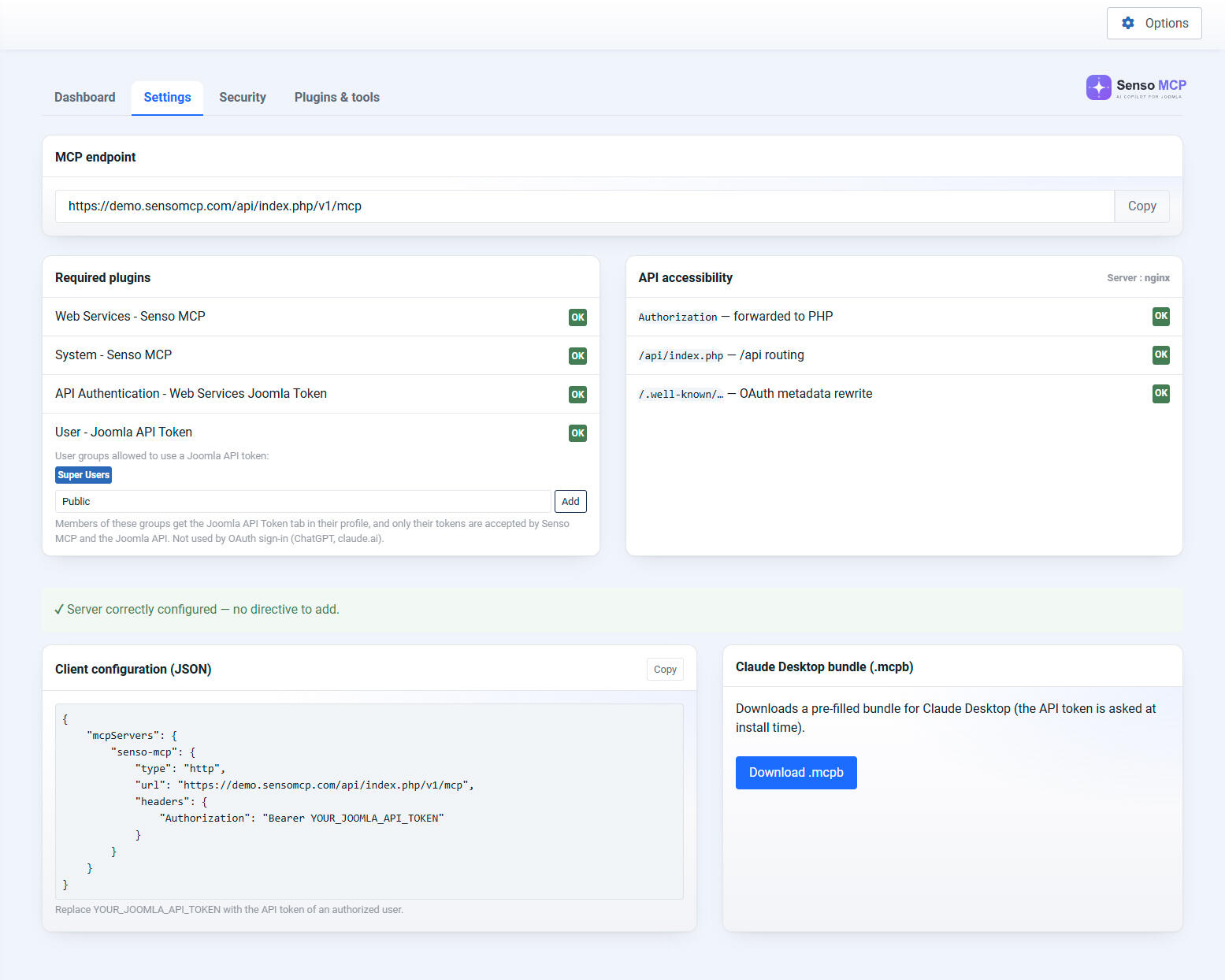
Before carrying out any other checks, open Senso MCP → Settings. The page tests what AI assistants need and offers to fix any issues:
- Required plugins: a disabled plugin can be enabled with one click (Enable or Enable all).
- API access: forwarding of the
Authorizationheader, routing of/api/index.php, and/.well-known/addresses. - OAuth sign-in: if the
/.well-known/addresses do not respond, the Repair automatically button first tries the.htaccessrule, then discovery under/api/. Each step is checked, and nothing is saved if it does not work. Manual fixes and a message ready to send to your hosting provider's support team are provided below. - Joomla API tokens: the user groups authorised to use a token are displayed under “User - Joomla API Token” and can be modified from the page.
Reload the page after each fix: the checks will be run again.
Hosting provider that responds to /.well-known/ itself (SiteGround…)
Symptom: ChatGPT or claude.ai stops before the authorisation page, and the /.well-known/… line on the Settings page is red. Some shared hosting providers, such as SiteGround, respond to /.well-known/ addresses themselves with a 404 error: the request never reaches Joomla, and an .htaccess rule has no effect.
Solution: click Repair automatically, or enable OAuth discovery without /.well-known/ (Options → Security). The assistants will then find the sign-in settings under /api/. Tested with claude.ai and ChatGPT. If your hosting provider subsequently agrees to forward these addresses to PHP, you can return to the standard configuration by disabling the option.
401 / hardened site
A heavily hardened site may block the sign-in required for authorisation and return a 401 error on the authorisation page. Make sure that the sign-in flow (Users component) remains accessible so that the OAuth step can be completed.
ModSec/WAF blockage
Some web application firewalls (WAF, ModSecurity) block the client's user agent and return 403 for /api/…/mcp. The solution is to exclude the MCP server path from the relevant rules.
Assistants do not use a browser: ChatGPT accesses the site with openai-mcp/1.0.0 and openai-connectors-oauth/1.0, while claude.ai uses Claude-User and python-httpx. A firewall or security extension that blocks “bots”, such as RSFirewall's user-agent filter, must allow them through to /api/index.php/v1/mcp.
“Unable to register with the sign-in service”
This Claude message, accompanied by an ofid_… reference, means that the assistant was unable to register its client with your site. Possible causes, from most to least common:
- Temporary failure on the assistant's side: try once more (Disconnect, then Connect) before carrying out any other checks.
- Senso MCP missing or disabled: if the component or its plugins (System and Web Services) are not active, the
.well-knowndocuments return 404 and registration is impossible. Check the component's Settings page, which tests these documents and re-enables the plugins. - Hosting provider's firewall: some shared hosting providers filter incoming requests using IP address blacklists (RBLs), which may include the assistant's servers. Registration, followed by the hourly renewal of the connection, is then blocked. Typical symptom: “Unable to reach… reconnecting may be necessary”, followed by this message when reconnecting. Ask your hosting provider which rule is blocking requests to
/api/index.php/v1/mcpand whether it can be excluded for this path. Otherwise, connect using an API token from Claude Desktop or Claude Code: the traffic will then originate from your computer.
Truncated Download ID
Unrelated to the connection but common: a Download ID entered incompletely prevents paid extensions from being updated. Make sure it is pasted in full in Joomla's update settings.
429 when registering the client
Automatic registration of MCP clients is limited by IP address (10 per hour and 50 per day by default, configurable in the component). Once this limit is exceeded, the server responds with 429 and a waiting period; already authorised connections are not affected. If the limit is reached legitimately, for example by several computers sharing the same address, increase it in the settings.
Checklist
- site served over HTTPS with a valid certificate;
- URL rewriting enabled;
.well-knowndocuments accessible, or OAuth discovery under/api/enabled;- Senso MCP plugins enabled;
- MCP server path not blocked by the WAF, a security extension, or the hosting provider's firewall.