Connect Claude
Claude connects to your site as an MCP client. The process takes less than a minute once the server is up and running.
Add the connector
In Claude, add a custom connector and enter your site's MCP server URL (see Server endpoints).
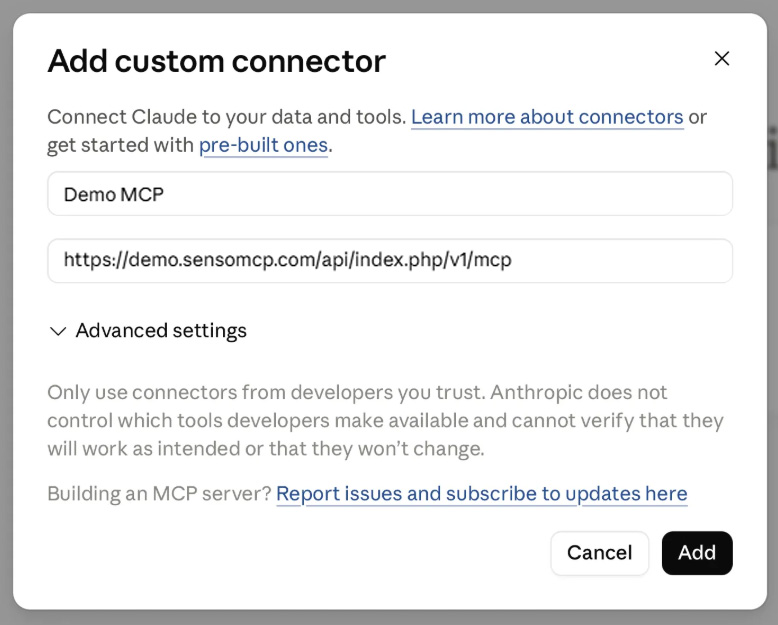
At the next step, leave the default settings as they are and simply click the "Add" button

Authorise the site
An authorisation page opens on your site. Sign in with a Joomla account that has the required permissions, then approve access. No password is sent to Claude: only an access token is issued.
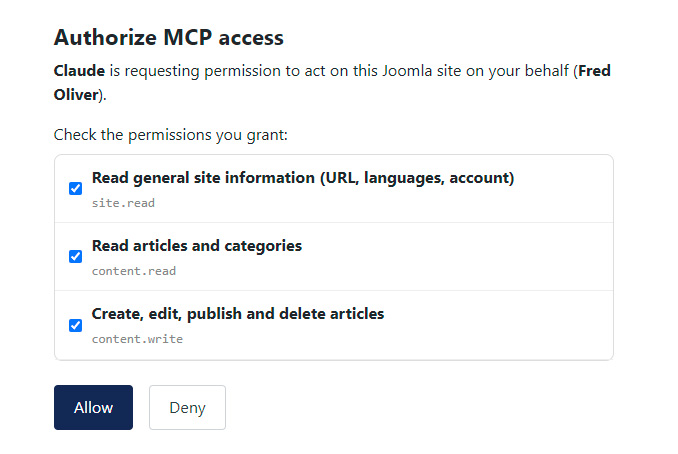
Check the connection
Back in Claude, the tools exposed by your site appear: the connection is established. You can run your first command.

Official documentation
Custom connectors are available on the Free plan (one connector only), as well as the Pro, Max, Team and Enterprise plans. On Team and Enterprise, only an organisation owner can add the connector; each user then activates it with their own Joomla account.
- Get started with custom connectors using remote MCP — Claude Help Center