Quick Start
Have you just installed the free pack? Here’s how to get up and running in just a few minutes: enable a plugin, retrieve your server address, connect your assistant to it, then run your first command.
Activate a plugin
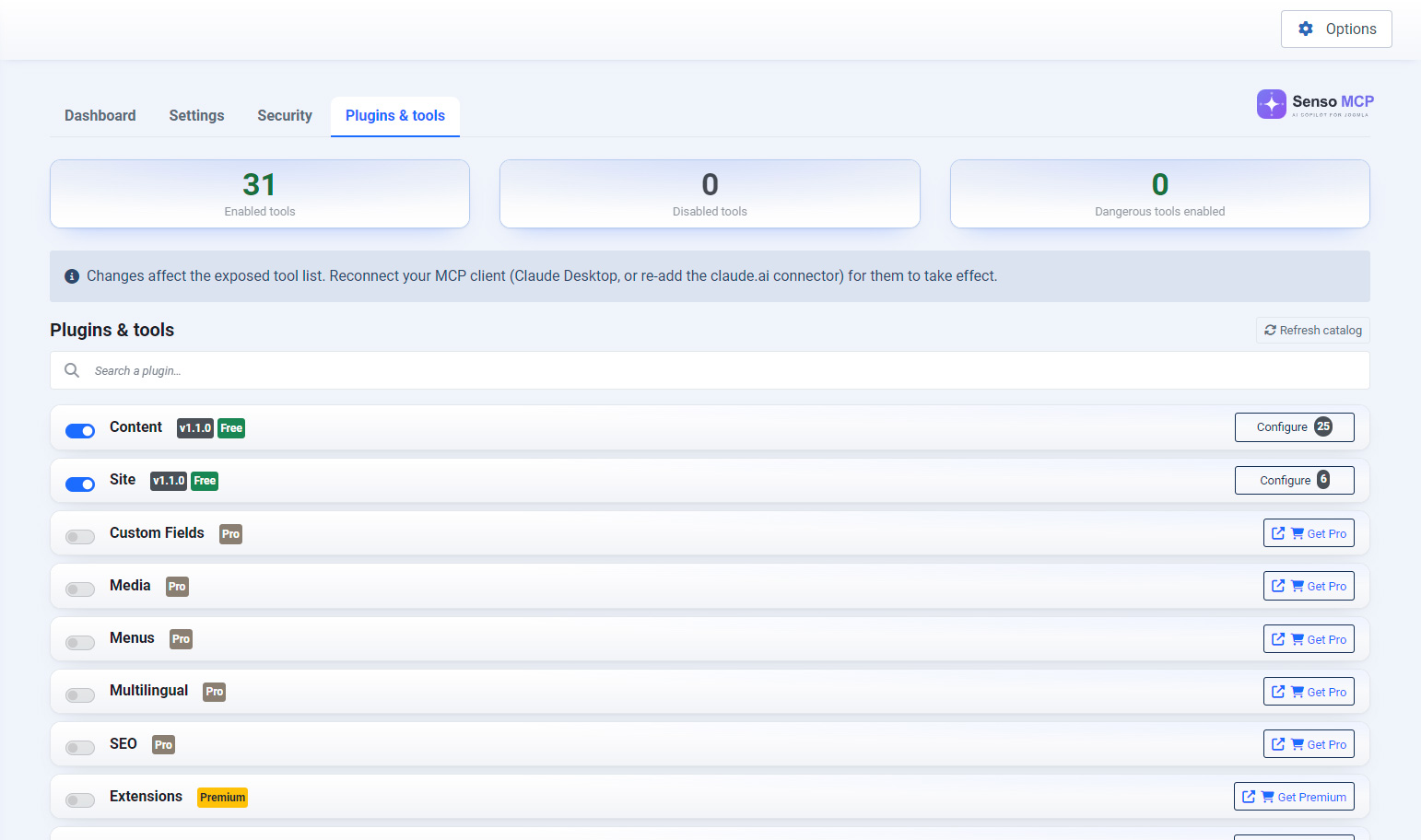
Open the component's Plugins view. Each plugin adds a set of tools to the MCP server. Enable at least the Content plugin to manage your articles.
Activation is immediate: the corresponding tools become available to your assistant without reloading the page.
Retrieve the MCP server URL
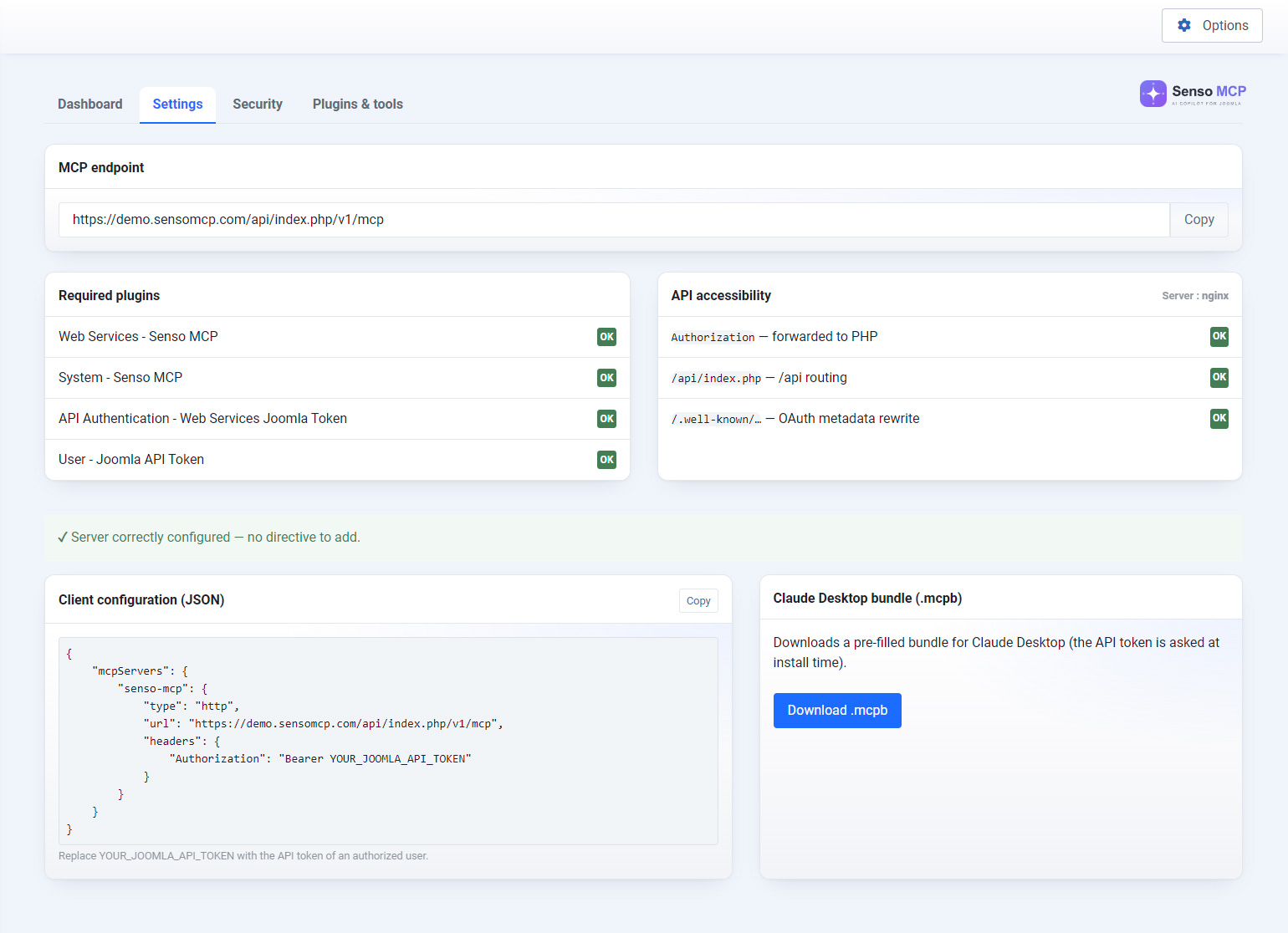
In the component's Settings, copy your site's MCP server URL. It follows the format https://your-site.tld/api/index.php/v1/mcp. This is the address you will provide to your assistant.
Connect your AI assistant
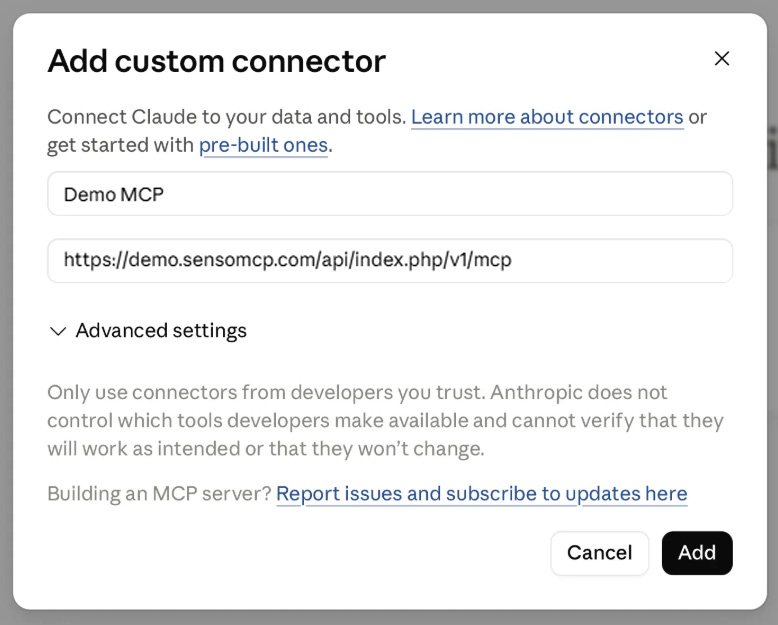
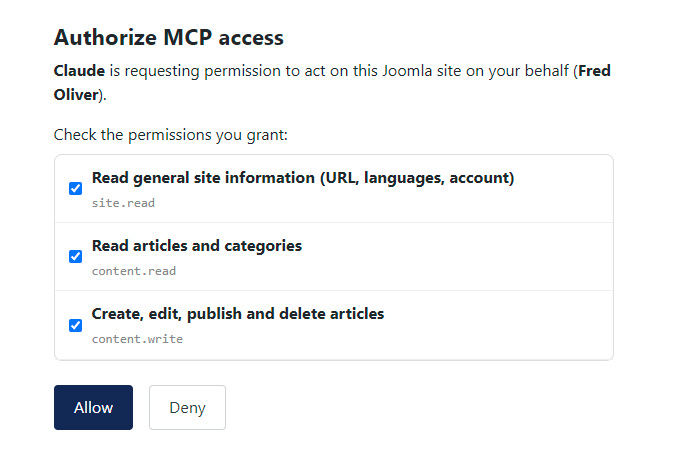
In your AI client (for example, Claude), add a connector by pasting in the server URL. An authorisation page will open: approve the connection to your site. Access is based on OAuth 2.1 and the registered domain — no password is ever sent to the assistant.
Once authorised, the assistant lists the available tools: the connection is established.
First command
All that remains is to talk to your site. For example, try:
“Create an article entitled Hello Senso MCP in the News category, with two introductory paragraphs, and leave it as a draft.”
The assistant performs the action in Joomla and confirms the result.